Step 8 – Coloring
In this step, we’ll apply color to the image.
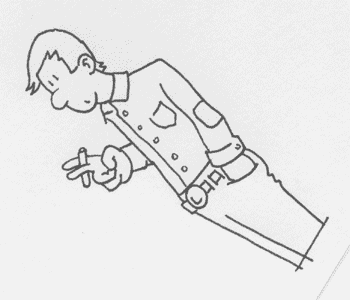
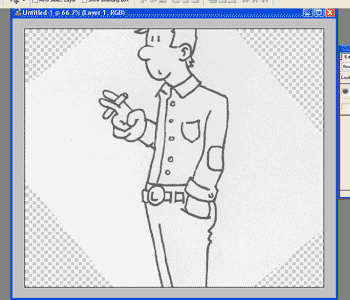
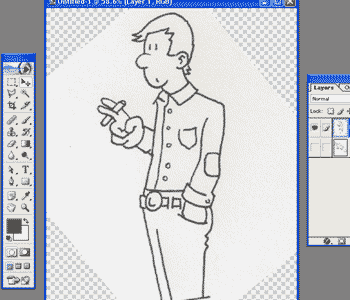
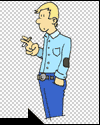
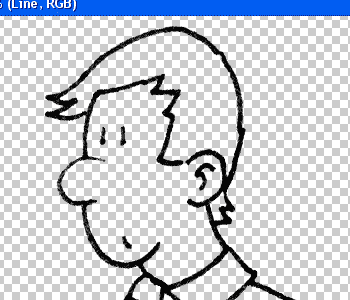
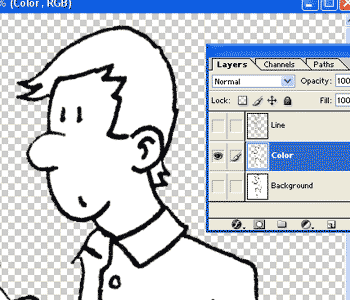
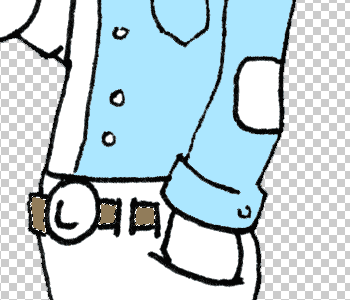
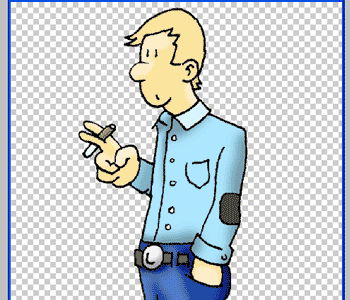
Take your magic wand and click in the middle of the white of the guy’s shirt. If your tolerance is still at 180, it selects both sides of his shirt and inside one of his front buttons: the tolerance is too high. Go to Select>Deselect (Ctrl+D/Windows; Cmd+D/MacOS). Change the wand tolerance down to 150 and click the right side of his shirt. Now, it only selects half the shirt and doesn’t pick up the inside of the front button. Go to Select>Save Selection. Call the selection something along the lines of "Right shirt," so that you’ll remember what the selection is of. Saving a selection lets you come back to it later, and this will be important for when we want to reselect certain parts while doing shading effects.
Now, click on the top square in the color swapper. The Color Picker window should come up. Choose the color that you want that part of the shirt to be & click OK. Go to Edit>Fill. This fills the selection with the color you just picked. Go to Select>Deselect. You just colored part of the comic!
What happens if you want to color several parts the same, like the belt for example? Select the middle section of the belt using the wand. Next, hold down the Shift button (the cursor should change to show a little + ) and click on the rightmost section. Both parts should be selected together. Holding down shift again as you click, click on the leftmost part of the belt. Unfortunately the lines don’t meet well enough and the selection spills out into the pants. Go to Edit>Step Backward (Alt+Ctrl+Z/Windows; Alt+Cmd+Z/MacOS) to undo that part of the selection. Your other two parts of the belt should still be selected. Turn the tolerance down to 130, and the last part of the belt should become selected without spilling over. Now save the selection as "Belt," choose a color for it, and fill.
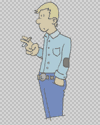
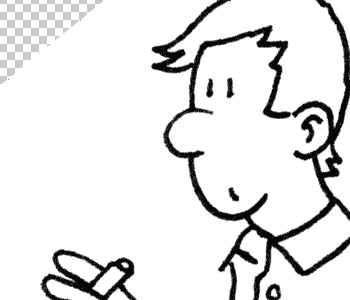
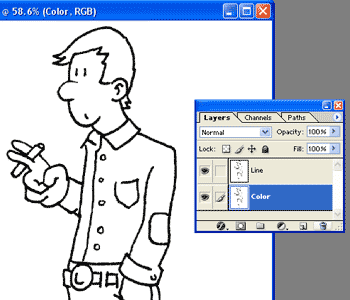
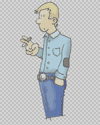
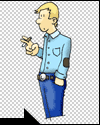
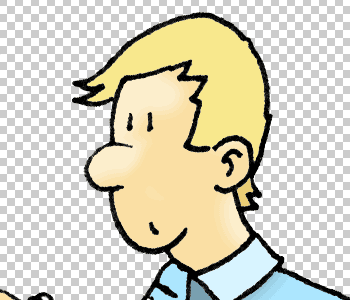
Use the select/save selection/color process over all the white areas within the drawing. Don’t worry if in some areas you have to turn the tolerance down to below 100 (like in the face); anything over 40 is fine. Once you’re done with that, make the Line layer visible again. You’ve finished coloring your comic!
|











Recent Comments